macOS guide
A free, open source video downloader for Mac
ArcDLP is a native-feeling macOS app that downloads video and audio from over a thousand sites. No ads, no upload limits, no account, and nothing ever leaves your Mac. This guide covers installing it, getting past the Gatekeeper warning, and picking a codec your editor will actually accept.
Installing on macOS
-
Download the
.dmg
from the releases page. Scroll to Assets and take the file ending in
-arm64.dmg. - Open it and drag ArcDLP into your Applications folder.
- Open ArcDLP. macOS will show a security warning. Click Done.
- Open System Settings → Privacy & Security, scroll to the bottom, and click Open Anyway next to ArcDLP. Enter your password.
Why the warning appears. ArcDLP is not notarised with an Apple
Developer certificate, which costs $99 a year. The project is free and has no revenue,
so that cost has not been justified yet. The trade-off is one extra approval on first
launch. If you would rather verify the code than trust the binary, the entire app is
on GitHub and you can
build it yourself with npm install && npm run build:mac.
Apple Silicon and Intel
The published build is arm64, so it runs natively on M1, M2, M3 and M4 Macs with no Rosetta involved. Intel Macs are not currently published as a prebuilt binary. Building from source on an Intel machine works, and the postinstall script pulls the correct architecture of yt-dlp and ffmpeg automatically based on your platform.
Downloading your first video
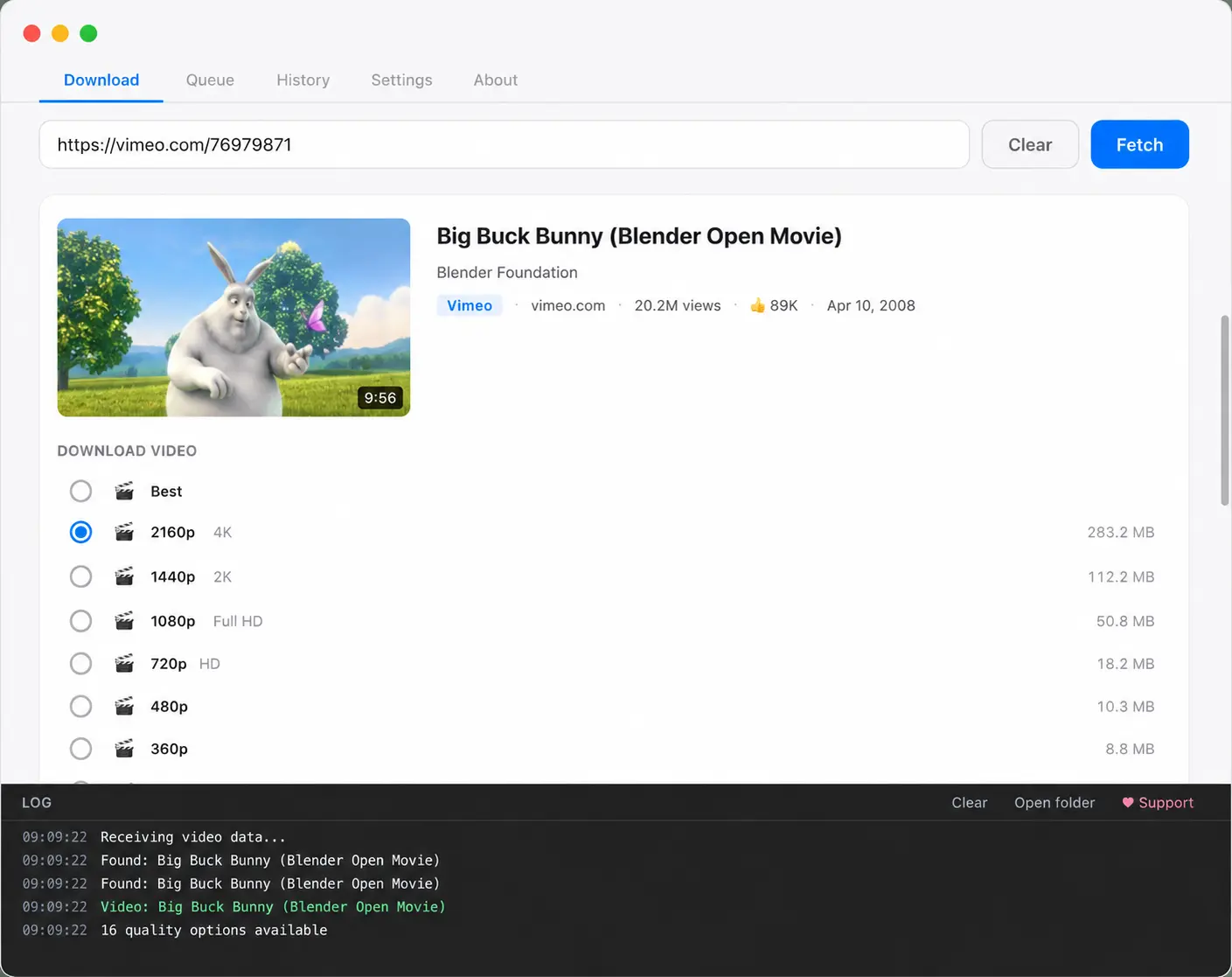
Paste any URL into the bar at the top and press Return or click Fetch. ArcDLP runs
yt-dlp --dump-json in the background and comes back with the title, channel,
duration, thumbnail and every quality the source actually offers, each with an estimated
file size. Pick one and click Add to Queue.
You do not have to wait between links. The Fetch button stays live, so you can paste a second and third URL while the first is still loading. Results stack up in a side panel and each one loads into the main card as you clear the previous.
Files save to ~/Downloads/ArcDLP by default, named
Title [videoid].mp4. Change the folder under Settings → Storage.
Picking a codec that Final Cut and Premiere will accept
This is the part that trips up Mac users specifically, because Apple's tooling is fussier about codecs than a browser is. Under Settings → Video → Video codec you get four options.
| Setting | Container | Use it when |
|---|---|---|
| Auto | MP4 | You just want to watch it. Whatever yt-dlp ranks highest. |
| H.264 | MP4 | Editing in Final Cut Pro, Premiere or Resolve. Opens in QuickTime with no conversion. |
| VP9 | WebM | Archiving. Smaller files at the same visual quality. |
| AV1 | MP4 | Smallest files. Needs a recent Mac and a modern player. |
The important caveat: YouTube only serves H.264 up to 1080p. Above that it is VP9 and AV1 only. ArcDLP treats codec as a preference rather than a hard filter, so asking for 4K in H.264 does not fail. It downloads the best available codec instead and tells you in the log which qualities were affected. If you need genuine 4K H.264 for an edit, download AV1 or VP9 and transcode once in Handbrake or Compressor.
There is one more macOS-relevant detail. When merging into an MP4 container, ArcDLP re-encodes the audio track to AAC. YouTube serves Opus audio, and Opus inside MP4 is technically valid but poorly supported by QuickTime and by several editors. AAC costs a few seconds of encoding and plays everywhere.
Extracting audio
The Extract audio section under the quality list gives you MP3, M4A and Opus, all at maximum quality. On a Mac, M4A is usually the right pick: it is AAC in an MP4 container, so it drops straight into the Music app, Logic and GarageBand without conversion. MP3 is the safer universal choice if the file is going to someone else.
Age restricted and private videos
Under Settings → YouTube Account, signing in opens Google's real login page inside a separate window. Your password goes to Google. ArcDLP only keeps the resulting session cookies, stored locally, and passes them to yt-dlp when it runs. There is a matching Instagram sign-in for private saved collections. Both can be cleared at any time with Sign out, or wiped entirely with Settings → Reset app.
Compared to the alternatives on Mac
Most "free YouTube downloader for Mac" results are either browser-based sites that interstitial you to death, or freemium apps that cap you at 1080p until you pay. The genuine alternatives are the yt-dlp command line, which is excellent and has no interface, and Homebrew plus a shell alias, which is the same thing with less typing. If you want the deeper comparison of front ends, read the yt-dlp GUI guide. Also available for Windows and Linux.
FAQ
Does it work on Apple Silicon Macs?
npm install and
npm run build:mac.
Why does macOS say ArcDLP is damaged or cannot be opened?
Which codec should I pick for Final Cut Pro or Premiere?
Where do downloads go?
~/Downloads/ArcDLP by default. Change it under Settings →
Storage, or click Open folder in the Queue tab to jump straight there in Finder.
Do I need to install ffmpeg or Homebrew?
Download for Mac
Free and MIT licensed. v1.4.x, Apple Silicon .dmg, nothing else to install.